How it works
How Screenwage works
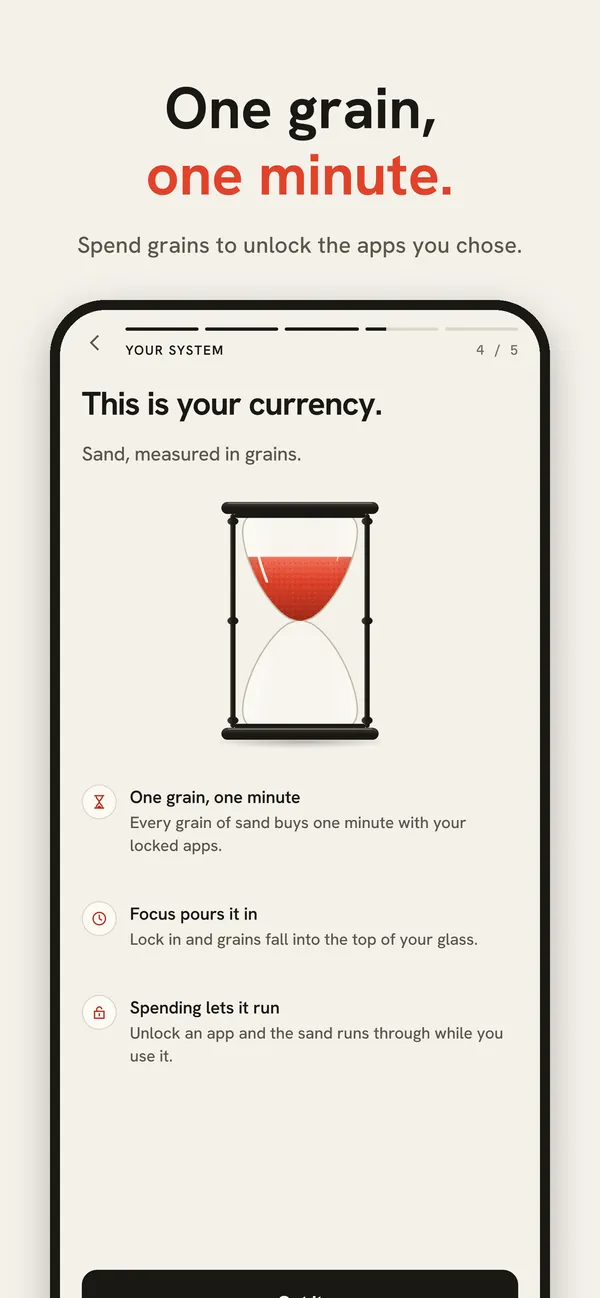
Screenwage locks the iPhone apps you choose with Apple’s Screen Time system. Focusing pours grains of sand into your hourglass, and one grain buys one minute in a locked app. You set the exchange rate, from 1 focused minute = 3 grains to 4 focused minutes = 1 grain.
Updated
Step 1: choose the apps to lock
When you set Screenwage up, you give it Screen Time access once and pick what to lock in Apple’s own picker: single apps such as TikTok, Instagram or YouTube, whole categories such as Social or Games, and websites. From then on iOS shows the Screenwage lock screen instead of opening them, even when Screenwage itself is closed.
Calls, Messages, Maps and emergency services are never locked unless you pick them yourself.
Step 2: focus to earn grains
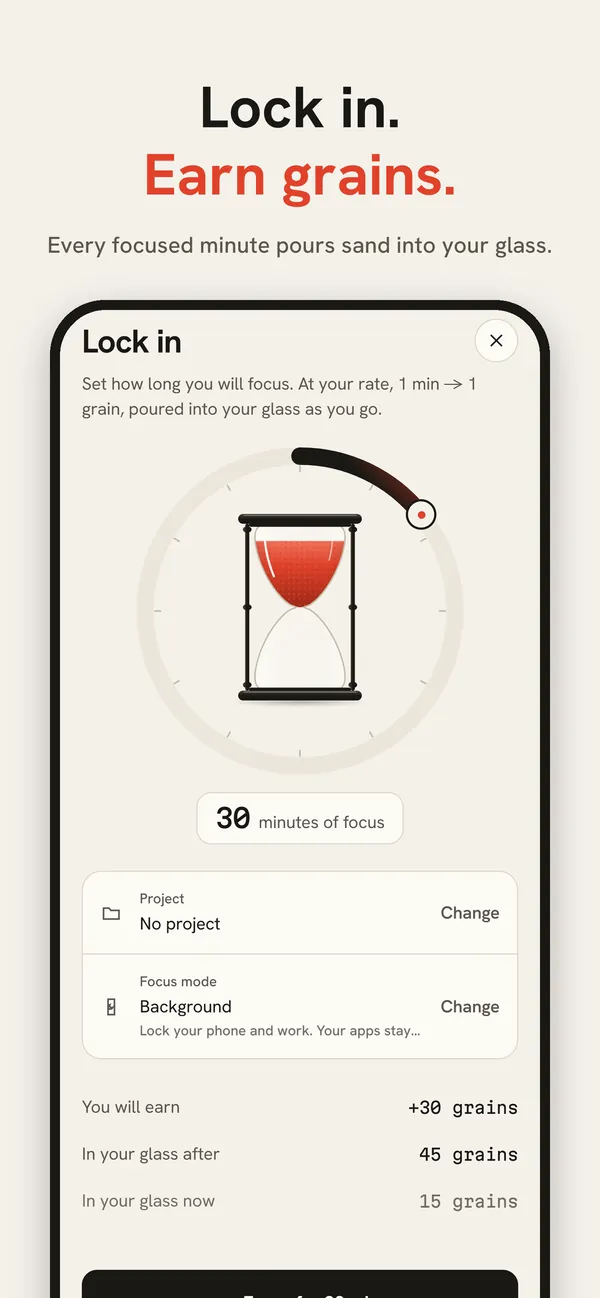
Start a focus session and choose how Screenwage should check that you are focusing. There are four ways to earn:
- Background: your phone locked away while you work. Time counts while the session runs.
- Stay Put: put the phone down. Earning pauses whenever it moves and resumes when it settles.
- [Focus Dock](/focus-dock/): use the camera to place a focus zone on your desk. If you lift the phone early, an alarm plays until you put it back.
- Phone Work: for work you do on the phone. Everything is locked except the apps you pick for the task.
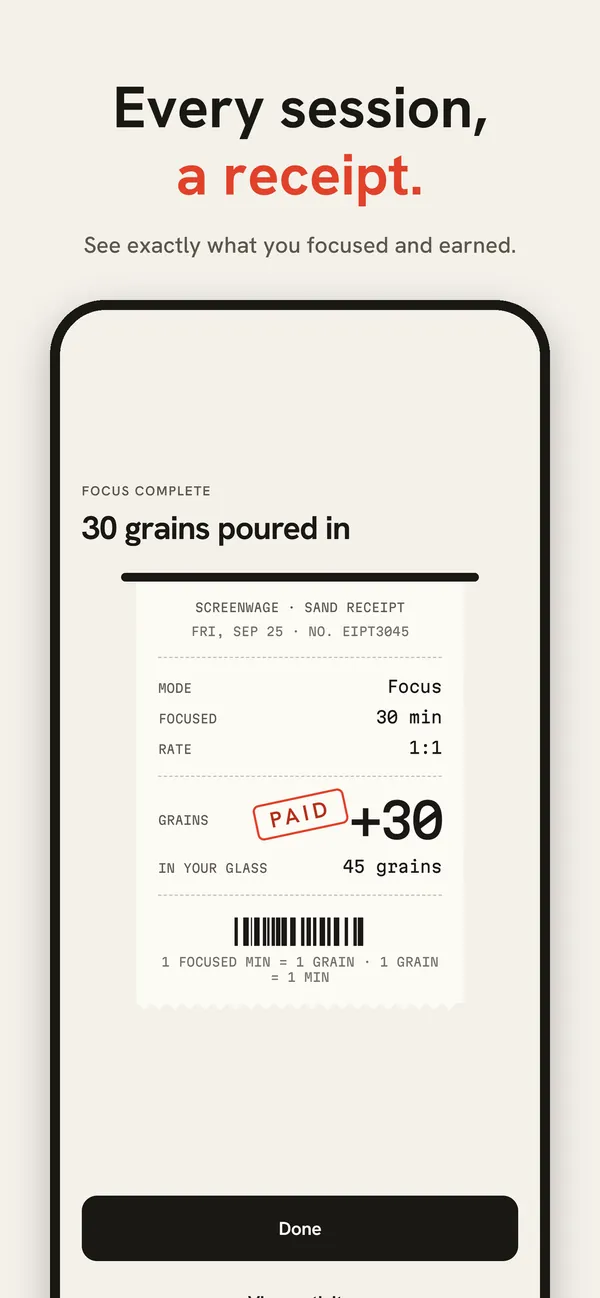
Elapsed time is measured with the phone’s monotonic clock, not the clock in Settings, so changing the time cannot add minutes. You get a 5-minute break at the start of a session and another for every 15 minutes you focus.
Step 3: spend grains to open apps
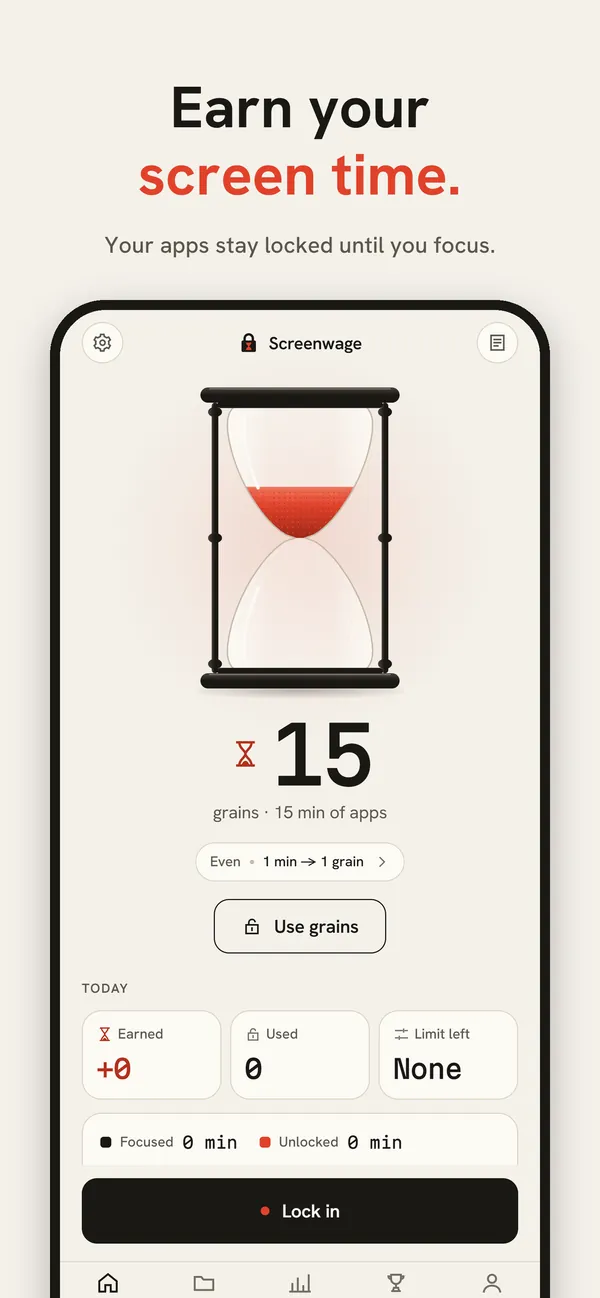
When you open a locked app, its lock screen shows your balance. Spend grains to open your locked apps for as many minutes as you choose, up to two hours at a time; when the time runs out, they lock again. If you relock early, the minutes you did not use go back into your hourglass.
An optional daily limit caps how many grains you can spend in one day, however many you have saved.
What is the exchange rate?
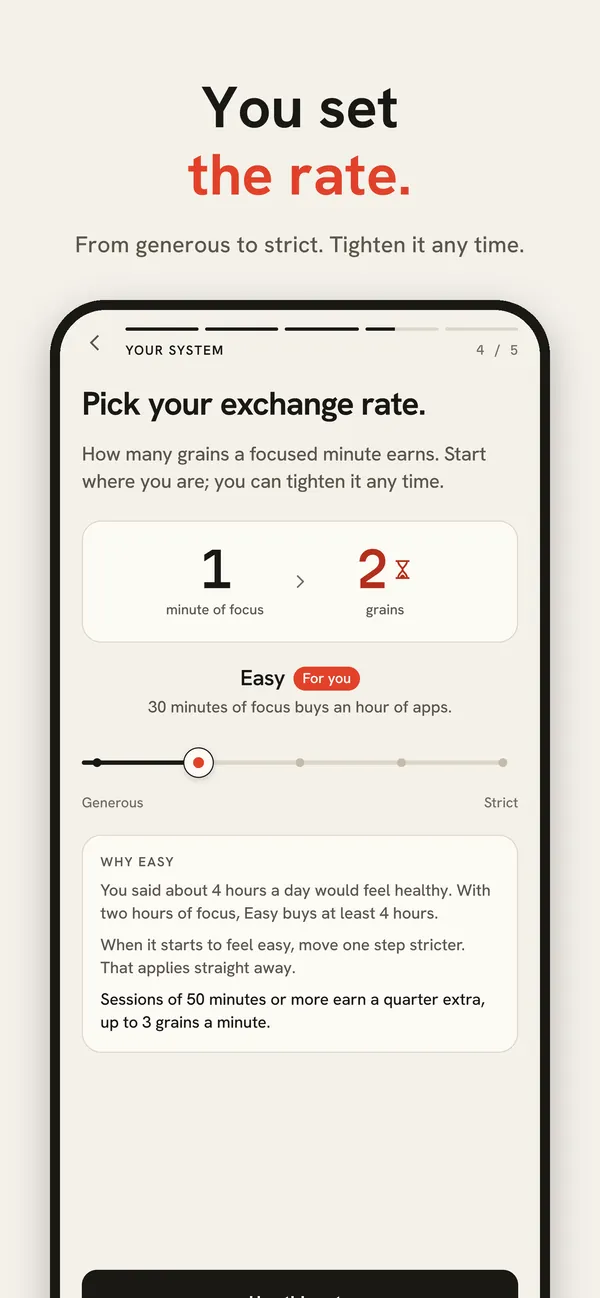
The exchange rate decides how many grains a focused minute earns. Screenwage suggests one from the goal you set during onboarding, and you can change it in Profile.
| Rate | Exchange | 60 focused minutes earn |
|---|---|---|
| Generous | 1 minute = 3 grains | 180 grains (3 hours of apps) |
| Easy | 1 minute = 2 grains | 120 grains (2 hours of apps) |
| Even (default) | 1 minute = 1 grain | 60 grains (1 hour of apps) |
| Balanced | 2 minutes = 1 grain | 30 grains (30 minutes of apps) |
| Strict | 4 minutes = 1 grain | 15 grains (15 minutes of apps) |
Sessions of 50 minutes or more earn a quarter extra. Making your rate stricter applies straight away; making it looser waits 24 hours, so a weak moment cannot undo a decision you made calmly.
Three modes for different days
Earning is one of three modes, and one mode is on at a time. You can switch in Profile → Mode whenever no session or lock is running.
- Earn: the default. Focus to earn grains, spend grains to open apps.
- [Lock hours](/lock-hours/): apps are locked during the hours you choose, such as school or work, and free outside them.
- [Quiz](/quiz-mode/): answer a few questions written from your own study notes to open an app.
What Screenwage never does
- It never sells grains. Grains come only from focus and have no cash value.
- It never takes back grains you earned.
- It never learns which apps you lock: Apple gives apps to Screenwage as anonymous tokens that stay on your iPhone.
- It never traps you. Profile → Safety turns all blocking off at once, with no waiting period.
Questions
- Does Screenwage work when the app is closed?
- Yes. The locks are held by iOS through Screen Time, so they stay on whether or not Screenwage is open.
- What happens to unused minutes?
- If you relock an app early, the minutes you did not use are refunded to your hourglass.
- Can I change my exchange rate?
- Yes, in Profile. A stricter rate starts at once; a looser one starts after 24 hours.